
Free Text Overlay Generator – Add Text to Images
A text overlay generator places readable, styled text on top of a photo. Use it for one quote card or for up to 100 images at once, with numbering, codes, links and text read from each photo.
Loading tool…
How to use the Text Overlay Generator
-
1
Step 1
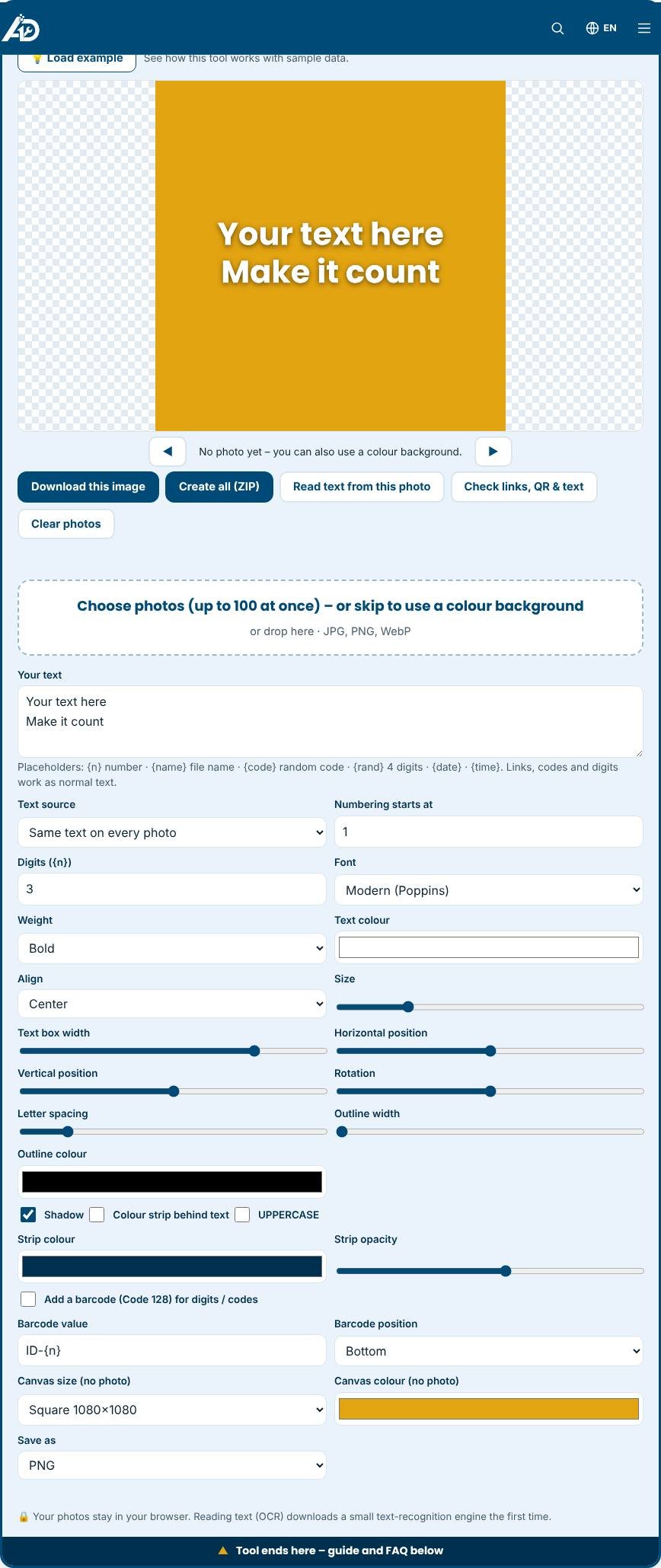
Upload one photo, or up to 100 photos at once (or skip this to use a colour background).
Text Overlay Generator – Step 1 -
2
Step 2
Type your text. Use {n} for numbers, {code} for random codes, or choose one line per photo or text read from each photo (OCR).
-
3
Step 3
Choose font, size, colour and position, then add a shadow, a colour strip or a barcode so the text stays readable.
-
4
Step 4
Check the preview with the arrows, then download one image or press “Create all (ZIP)”.
What is a text overlay generator?
A text overlay generator places readable, styled text on top of an image. It is the quickest way to turn an ordinary photo into a quote card, a YouTube thumbnail, a sale banner, a Pinterest pin or an Instagram story. Instead of opening design software, you upload a picture, type your words and adjust font, size, colour and position until the preview looks right. Then you download the finished image. If you do not have a photo, you can start from a plain colour canvas in the most popular social media sizes.
How to make text readable
The most common problem with text on photos is poor contrast. This tool gives you several ways to fix it. A soft shadow separates the letters from busy areas. An outline in a contrasting colour helps on bright photos. A semi-transparent colour strip behind the text works on almost any image because it creates a calm area for reading. You can also move the text to a quiet part of the photo, such as the sky or a plain wall, and increase the size so that it can still be read on a small phone screen.
Popular uses
- Quote graphics and motivational posts for Instagram, Facebook and LinkedIn.
- YouTube and blog thumbnails that need a short, bold headline.
- Sale and promotion banners for online shops and marketplaces.
- Pinterest pins with a title that explains the idea in a few words.
- Class notices, event reminders and WhatsApp status images.
- Watermarks and credits, set small in a corner with low opacity.
Design tips that work
- Keep the message short. Seven words or fewer is easy to read at a glance.
- Use no more than two font styles. A bold headline and a smaller supporting line is usually enough.
- Choose high contrast: white text on dark areas, dark text on light areas.
- Leave generous margins so platforms that crop images do not cut off your words.
- Match the canvas size to the platform. Square works for feeds, tall formats for stories and pins, wide formats for thumbnails.
- Test your design at thumbnail size before you publish. If you cannot read it small, make the text larger.
Common mistakes to avoid
- Placing text over a face or the main product, which hides the subject.
- Using a thin decorative font on a busy photo. Pick a bold font for headlines.
- Adding too many colours. Stick to your brand palette so your posts look consistent.
- Exporting a tiny image. Use the original resolution so the text stays sharp.
Privacy and limits
The photo and your text stay on your device and are not uploaded. Fonts come from your device, so a font that looks great on your computer may differ slightly on another one; the Modern option uses a web font that loads with the page. The tool places one text block per image. For complex layouts with several text boxes, download the image and add more text in a second pass.
Batch mode: up to 100 images at once
Add up to 100 photos in one go and the tool creates a finished copy of each, then gives you a single ZIP file. The text can come from three sources. Same text puts one message on every photo, one line per photo uses your lines in turn, and text read from each photo uses OCR. Placeholders make numbering easy: {n} is a counter that starts where you choose, {name} is the file name, {code} is a random eight character code, {rand} is four digits, and {date} and {time} insert today's date and time. Links, digits and codes are ordinary text. A Code 128 barcode can be added to every image; QR codes are not included.
Related tools
Remove a distracting background first with the Image Background Remover, write a caption with the Image Caption Generator and then shrink the file with the Image Compressor.
Who is it for?
Social media managers, bloggers, teachers and small shops that publish images every day.
Why use it
- Works in your browser – files are not uploaded
- No signup, no watermark
- Fast on phone, tablet and desktop
- Download in common formats (PNG, JPG, WebP)
Frequently asked questions
Does the image get a watermark?
No. The downloaded image contains only your photo and your text.
What size is best for social media?
Use 1080×1080 for square posts, 1080×1350 for portrait posts and 1280×720 for video thumbnails.
Can I use my own font?
You can pick from the built-in fonts. Custom font upload is planned for a later update.
What size should a YouTube thumbnail be?
Use the 1280 by 720 pixel option. It has a 16:9 ratio, which is what YouTube recommends, and keeps text sharp.
Can I use my own brand colours?
Yes. Use the colour pickers for text, outline and strip, and enter your exact brand colour values.
Is there a watermark on the images I download?
No. Images download exactly as shown in the preview with no watermark or logo added by us.