
Free Internet Speed Test – Check Download and Upload Speed
An internet speed test measures how fast data moves to and from your device: download, upload and latency (ping). Run it a few times, ideally on a wired connection, to see what your provider really delivers.
Loading tool…
How to use the Internet Speed Test
-
1
Step 1
Close other apps and downloads that use the internet.
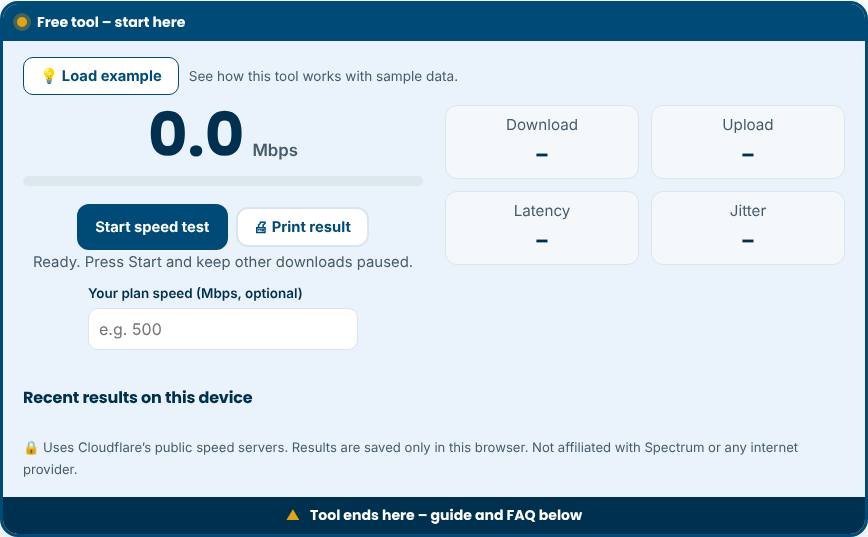
Internet Speed Test – Step 1 -
2
Step 2
Press “Start” and wait for the download, upload and ping results.
-
3
Step 3
Repeat the test at a different time of day.
-
4
Step 4
Compare the average with your plan and follow the tips if it is far lower.
Test your internet speed in one click
A speed test tells you how fast data moves between your device and the internet. This free tool measures four numbers: download speed, upload speed, latency and jitter. It works for any provider, including cable, fibre, DSL, fixed wireless and mobile data, and it is useful for customers of any internet service provider, such as Spectrum, Comcast, BT or Jazz. We are not affiliated with any provider. Press the start button, wait about twenty seconds and compare the result with the speed in your plan.
What the numbers mean
- Download speed is how fast data arrives on your device. It affects streaming, web pages, downloads and video calls. It is measured in megabits per second, or Mbps.
- Upload speed is how fast data leaves your device. It matters for video calls, cloud backups, live streaming and uploading large files.
- Latency, also called ping, is the time in milliseconds for a small signal to travel to a server and back. Low latency feels responsive in games and calls.
- Jitter is the variation in latency. High jitter causes choppy audio and video.
What speed do you need?
Requirements depend on how many people and devices use the connection at the same time. As a rough guide, a single HD video stream needs about 5 to 8 Mbps, a 4K stream about 25 Mbps and a video call 2 to 5 Mbps each. Households with several people streaming, gaming and working from home benefit from 100 Mbps or more. Remember that internet plans advertise megabits per second, while file sizes are shown in megabytes. Divide Mbps by eight to estimate megabytes per second.
How to get a more accurate result
- Pause downloads, streaming and cloud backups on all devices.
- Connect your computer to the router with an Ethernet cable if possible.
- If you use Wi-Fi, stand close to the router and use the 5 GHz band.
- Close other browser tabs and turn off VPNs and ad blockers for the test.
- Run the test three times at different hours and compare the results.
Why your speed may be lower than your plan
Wi-Fi is the most common reason. Distance, walls, interference from neighbouring networks and old devices can cut speed in half. Other reasons include an overloaded router, an old modem, congestion in the evening, a slow device or a service limit during busy times. Plans often advertise "up to" speeds, so results between 80 and 100 percent of the plan over a cable are normal.
What to do about slow internet
- Restart the modem and router and test again.
- Move the router to a central, open location, away from metal objects and microwaves.
- Upgrade to a newer router, or add a mesh system for larger homes.
- Check for software updates, malware or background downloads.
- Contact your provider with your test results and the times you ran them.
Common mistakes to avoid
- Testing over a weak Wi-Fi signal and blaming the provider.
- Comparing Mbps with MB/s.
- Running a single test during peak hours and taking it as the full picture.
- Testing with a VPN connected, which adds distance and overhead.
Privacy and limits
The test connects to public Cloudflare speed servers, so your browser downloads and uploads test data from them. We save a short history of your results only in your own browser. Results can vary by test server and distance, so they might differ slightly from your provider's own tool.
Related tools
Check your website's security with the Website Security Scanner, and estimate cloud hosting and backup costs with the Cloud Storage Cost Calculator.
Who is it for?
Home users, remote workers and gamers checking their plan or fixing slow Wi‑Fi.
Why use it
- Quick checks with clear next steps
- Passwords are never sent anywhere
- Easy explanations, no jargon
- Free and mobile friendly
Frequently asked questions
What is a good internet speed?
For most homes, 25–100 Mbps handles streaming and video calls. Larger households and gaming may want more.
Why is my speed lower than my plan?
Wi‑Fi distance, busy times, old routers and many connected devices can all reduce speed.
What is ping?
Ping is the delay before data starts to move, shown in milliseconds. Lower is better for calls and gaming.
Why is my speed test result lower than my plan?
Wi-Fi, router quality, other devices and busy times all reduce speed. Test with a cable and with other devices off to see your true connection speed.
Is this speed test free and accurate?
It is free and uses a large test file to measure real throughput. Accuracy depends on your device, network and the distance to the server.
Does this test use my data allowance?
Yes. A test can use several hundred megabytes, so be careful on a limited mobile data plan.
Only scan websites you own or have permission to test. Results are guidance, not a guarantee of security.