
Website Security Scanner – Check Your Site’s Basic Security
A website security scan looks for common weaknesses: missing HTTPS, absent security headers, outdated software and exposed files. Use it only on sites you own or have permission to test.
Loading tool…
How to use the Website Security Scanner
-
1
Step 1
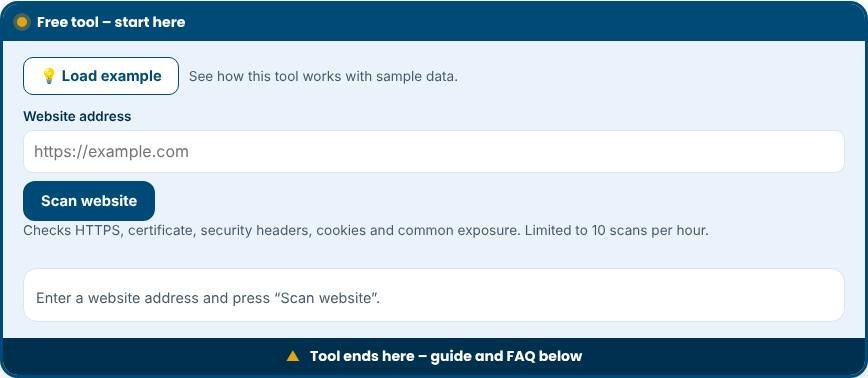
Enter the address of your own website.
Website Security Scanner – Step 1 -
2
Step 2
Run the check and wait for the report.
-
3
Step 3
Read each finding, starting with the high priority items.
-
4
Step 4
Apply the suggested fixes and run the check again.
What is a website security scanner?
A website security scanner checks the visible security setup of a site and tells you what is missing. This free scanner is passive. It requests your home page once, reads the response headers and the HTML, checks whether HTTP redirects to HTTPS, looks at the TLS certificate and tests for a security.txt file. It does not attack, crawl or modify anything. Within seconds you get a grade from A to F plus a list of what passed, what needs attention and how to fix each point.
What the scanner checks
- HTTPS and certificate: whether the site uses encryption and how many days remain before the certificate expires.
- HTTP to HTTPS redirect: whether visitors who type the plain address are moved to the secure version.
- HSTS: a header that tells browsers to always use HTTPS for your domain.
- Content-Security-Policy: a rule set that limits where scripts and other resources can load from, reducing the impact of cross-site scripting.
- X-Frame-Options and frame-ancestors: protection against clickjacking, where your site is hidden inside another page.
- X-Content-Type-Options, Referrer-Policy and Permissions-Policy: headers that reduce information leaks and limit browser features.
- Cookies: whether cookies are marked Secure and HttpOnly.
- Version disclosure and mixed content: server details that help attackers and insecure resources on secure pages.
How to read the grade
The grade is a weighted summary of the checks, not a guarantee. A site with an A has the common protections in place. A D or F usually means HTTPS or several important headers are missing. Many items are quick wins you can fix with a few lines in your server configuration, a security plugin or your hosting panel. Start with HTTPS and the redirect, then add HSTS, X-Frame-Options and X-Content-Type-Options, and plan a Content-Security-Policy in report-only mode before enforcing it.
Practical steps to improve a WordPress site
- Install a certificate (most hosts offer one free) and force HTTPS site-wide.
- Add security headers through your host, a caching plugin or the server configuration.
- Keep WordPress, themes and plugins updated, and delete the ones you do not use.
- Use strong, unique passwords and two-factor authentication for every admin account.
- Limit login attempts and use a web application firewall if your host offers one.
- Take regular backups and test restoring them.
Tips for safe scanning
- Scan only websites you own or have permission to test.
- Run the scan again after each change to confirm that the header appears.
- Test both the www and non-www versions of your address.
- Remember that CDNs and caches can add or remove headers, so scan the live address your visitors use.
Common mistakes to avoid
- Enabling a strict Content-Security-Policy without testing. It can break scripts, fonts and payment forms.
- Adding HSTS with a long duration before every subdomain supports HTTPS.
- Believing that a good scan means the site is secure. Outdated plugins and weak passwords still lead to hacks.
- Ignoring cookie flags on login and session cookies.
Privacy and limits
The scan runs from our server, which requests the public address you enter, like a browser would. We apply limits per visitor and block private network addresses. The tool cannot test logged-in areas, scan for malware, find vulnerable plugins or see issues behind a firewall. It complements, and does not replace, a full security audit.
Related tools
Check your logins with the Password Strength Checker, review your email authentication with the Email Deliverability Checker and plan hosting costs with the Cloud Storage Cost Calculator.
Who is it for?
Site owners, bloggers, shop owners and developers who want a quick health check.
Why use it
- Quick checks with clear next steps
- Passwords are never sent anywhere
- Easy explanations, no jargon
- Free and mobile friendly
Frequently asked questions
Is it legal to scan any website?
Only scan sites you own or have written permission to test.
Does a clean report mean my site is safe?
No. It covers basic checks only. Keep software updated, use strong passwords and take backups.
What are the quickest security wins?
Use HTTPS, update plugins and themes, enable two-factor login and keep backups off the server.
Is it legal to scan a website?
Scanning your own website is fine. This tool only reads public information, but you should not scan other people's websites without permission.
Why does my site get a low grade even though it is not hacked?
Missing headers do not mean you have been hacked. They are protections that reduce risk, and most take only minutes to add.
Does the scanner store my results?
No results are stored on our servers. Only a short-term counter limits how many scans one visitor can run per hour.
Only scan websites you own or have permission to test. Results are guidance, not a guarantee of security.