
KDP Publishing Listing Assistant – Titles, Keywords and Descriptions
A strong KDP listing helps readers find and trust your book. This assistant helps you write a title and subtitle, choose seven keyword phrases, pick categories and draft a clear description.
Loading tool…
How to use the KDP Publishing Listing Assistant
-
1
Step 1
Enter your book topic and reader.
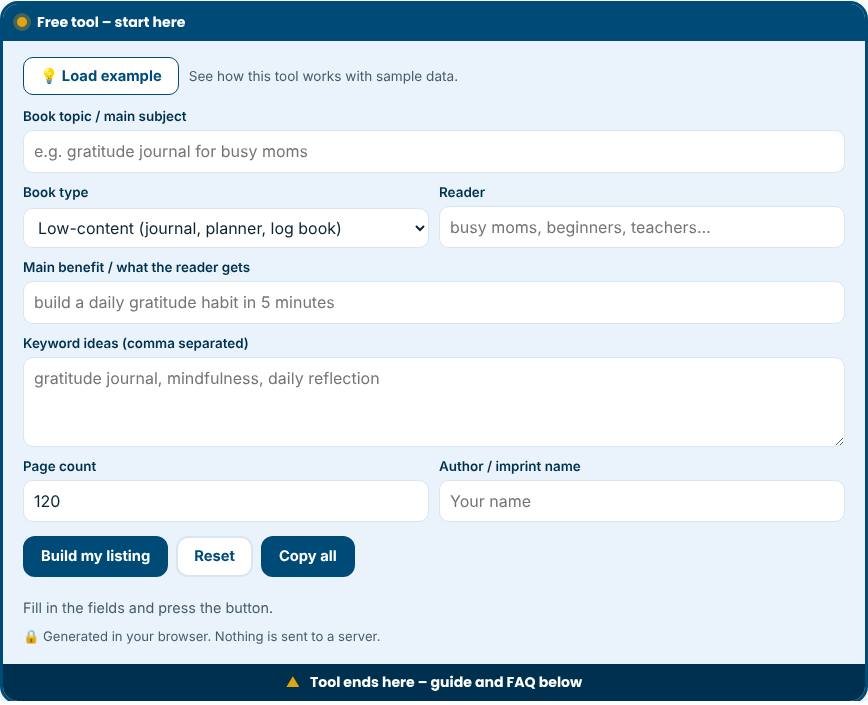
KDP Publishing Listing Assistant – Step 1 -
2
Step 2
Generate title and subtitle ideas that include search phrases.
-
3
Step 3
Build seven keyword phrases and choose two categories.
-
4
Step 4
Draft the description and check it against KDP content guidelines.
What is a KDP publishing listing assistant?
When you publish a book on Amazon Kindle Direct Publishing, the listing decides whether readers find it and click Buy. The title, subtitle, seven keyword boxes, description and categories all matter. This free assistant creates title options, subtitle ideas, seven keyword suggestions with a character counter, an HTML description, category ideas and a checklist of rules to follow. It works for non-fiction, fiction, low-content books such as journals and planners and children's activity books.
How the assistant helps
Enter the topic, book type, reader, main benefit and a few keyword ideas. The tool then builds title options of up to 200 characters, subtitles that explain the promise, keyword phrases of up to 50 characters each and a description with a clear promise, bullet points and a closing call to action. The description uses simple HTML tags that KDP accepts, such as bold, italics and lists. Copy any block and paste it into your KDP listing, then refine it.
Understanding the KDP fields
- Title and subtitle: both are visible to readers and used in search. They must match the cover and the book.
- Seven keywords: phrases readers might type, each up to 50 characters. Do not repeat words from your title, since the title is already used for search.
- Description: a persuasive summary of what is inside and who it is for.
- Categories: where your book is listed in the Amazon store. Browse similar bestsellers to choose them.
- Pricing and royalties: depend on page count, trim size and print cost for paperbacks.
Tips for a high-converting listing
- Put the reader's outcome in the description's first line. Many shoppers read only the start.
- Use short paragraphs and bullet points, which are easier to scan on a phone.
- Choose keywords from phrases that readers use, such as "gratitude journal for women", not from your own creative names.
- Make sure the cover is clear at thumbnail size and tells the genre at a glance.
- Look inside: for low-content books, use the preview pages to show the layout.
- Collect reviews through honest reader engagement, and never offer payment for reviews.
Rules to remember
KDP has content guidelines, and they change from time to time, so read the current ones. Do not use unverifiable claims such as "number one" or "bestseller". Do not include other authors' names or trademarks in the title or keywords. Declare AI-generated content when KDP asks you to. Low-content and no-content books must offer real value; repetitive or misleading books may be removed. Paperbacks must have at least 24 pages, and spine text needs a higher page count.
Common mistakes to avoid
- Stuffing the title with keywords until it reads like spam.
- Using keywords unrelated to the book content.
- Choosing a very broad category with high competition and no chance to rank.
- Publishing without reading the proof copy or using the KDP previewer.
Privacy and limits
The assistant creates suggestions from your inputs with rules and templates, and it runs in your browser. It does not check Amazon search volumes or competition, so test the phrases in the Amazon search bar and look at what appears. Amazon's rules and category names change, so verify them in your KDP dashboard before publishing.
Related tools
Create the interior with the Low Content Book Generator, write and export a book with the Ebook Generator and promote it with the AI Marketing Toolkit.
Who is it for?
Self-published authors and low-content book creators using Amazon KDP.
Why use it
- Title, subtitle and seven-keyword helper
- Interior layouts for journals, planners and logbooks
- Ebook outlines and chapter plans
- Free to start
Frequently asked questions
How many keywords does KDP allow?
KDP provides seven keyword boxes for each book.
Should the subtitle include keywords?
Yes, naturally. It should still read well and describe the book accurately.
Do I have to disclose AI-generated content?
KDP asks publishers to disclose AI-generated content when publishing. Check the current guidelines.
How many keywords can I use on KDP?
Seven keyword boxes, with up to fifty characters in each. Use phrases, not single words.
Should my title include my keywords?
Include the most important phrase naturally, but keep it readable and accurate. The title must match the cover.
Does the tool check Amazon rules for me?
It shows reminders of common rules, but you must check KDP's current guidelines yourself before you publish.
Always follow Amazon KDP’s content guidelines, copyright rules and AI-generated content disclosure requirements.