
Image Compressor to 100KB – Reduce Photo Size Online
To compress an image to 100KB you lower its quality and, if needed, its dimensions until the file fits the limit. This tool does it automatically: choose a target size and it finds the best quality that stays under it.
Your files never leave your device.
How to use the Image Compressor to 100KB
-
1
Step 1
Add one or more images (JPG, PNG or WebP) with the upload box.
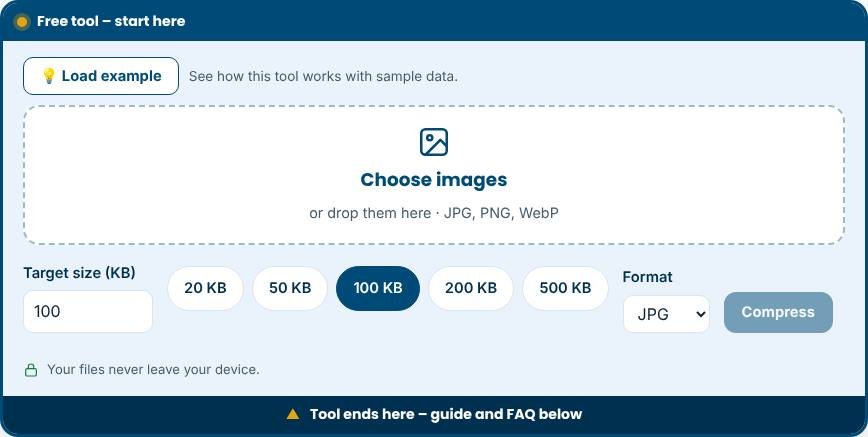
Image Compressor to 100KB – Step 1 -
2
Step 2
Set the target size. 100 KB is pre-selected; change it to 20, 50, 200 KB or any value you need.
-
3
Step 3
Press “Compress”. The tool tests quality levels and keeps the best result under your target.
-
4
Step 4
Compare before and after, then download each image.
What does it mean to compress an image to 100KB?
Many websites, job portals, school forms and government applications limit the size of an uploaded photo or signature, often to 100 KB, 50 KB or 200 KB. Compressing an image to 100KB means reducing the file size, not necessarily the visible size, so it fits that limit. This tool does the work for you. Choose a target size, add your pictures and the tool searches for the best quality setting that stays under the limit. It is free, needs no signup and keeps your files on your device.
How the compression works
JPG and WebP are lossy formats. Each time a file is saved, an encoder decides how much detail to keep, and a quality setting from 0 to 100 controls that choice. Lower quality means a smaller file. The tool tries different quality levels and keeps the highest one that still fits your target. If quality alone cannot reach the goal, for example with a very large photo and a 20 KB target, it reduces the pixel dimensions step by step. A 4000-pixel photo from a modern phone is far larger than any screen needs, so shrinking the dimensions usually costs very little visible detail.
Common sizes and where they are used
- 20 KB to 50 KB: signatures, thumbnails and small passport-style photos on application forms.
- 100 KB: profile pictures, ID photos and many document upload fields.
- 200 KB to 500 KB: blog images, product photos and email attachments that need to load quickly.
- 1 MB and above: print files and images where quality matters more than speed.
Tips for the best result
- Start from the original photo, not a screenshot or a file that was already compressed several times.
- Choose JPG for photos. It gives the smallest files for natural images. WebP is smaller still but not accepted everywhere, so check the form first.
- For signatures and text, use a plain white background. Flat colours compress far better than a noisy scan.
- Crop away unnecessary borders before compressing. Fewer pixels mean a smaller file.
- Keep a copy of the original. Once you compress and delete the source, the lost detail cannot be recovered.
Common mistakes to avoid
- Renaming a file to .jpg without converting it. A PNG renamed to JPG is still a PNG and may be rejected.
- Compressing the same file repeatedly. Every pass adds artefacts.
- Setting an unrealistic target, such as 10 KB for a large detailed photo. The result will look blocky; use a smaller size or crop the image instead.
- Ignoring the required dimensions. Some forms ask for exact pixel sizes as well as a file size limit, so check both.
Privacy and limits
Files are processed inside your browser using the canvas feature. They are not uploaded to our servers, which matters for ID and passport photos. The tool aims just under your target, so a result may be a few kilobytes smaller than the limit. PNG files are converted to JPG or WebP because PNG compression is lossless and cannot be tuned to a size.
Related tools
Need a transparent cut-out first? Use the Image Background Remover. To add text to the photo, try the Text Overlay Generator.
Who is it for?
Students and job applicants filling forms with size limits, bloggers and shop owners who want faster pages.
Why use it
- Works in your browser – files are not uploaded
- No signup, no watermark
- Fast on phone, tablet and desktop
- Download in common formats (PNG, JPG, WebP)
Frequently asked questions
Can I compress to exactly 100KB?
The tool aims just under your target. An exact size is not always possible, but results are usually within a few KB below the limit.
Will compressing hurt the quality?
Slightly. Photos normally look the same at screen size. Dimensions are reduced only when quality alone cannot reach the target.
Is it safe for ID or form photos?
Yes. Files are processed on your device and are not uploaded.
How can I compress a photo to exactly 100KB?
Exact sizes are rarely possible because encoders work in steps. This tool gets as close as it can below your limit, which is what upload forms require.
Will compressing reduce the dimensions of my photo?
Only when quality reduction is not enough. If your photo is already small, the tool lowers quality first and keeps the pixel size.
Which format should I choose for an upload form?
JPG is accepted almost everywhere. Choose WebP only when the website explicitly allows it.