
Free Online Project Management Tools – Boards, Lists and Timelines
Free online project management tools help a team see who is doing what and by when. Start with a board for tasks, add owners and due dates, and use the checklist below to pick the right software for your team size.
Loading tool…
How to use the Free Online Project Management Tools
-
1
Step 1
List every task needed to finish the project.
Free Online Project Management Tools – Step 1 -
2
Step 2
Assign an owner and a due date to each task.
-
3
Step 3
Group tasks into columns such as Backlog, This week, In progress and Done.
-
4
Step 4
Hold a short weekly review and update the board together.
A free online Kanban board for any project
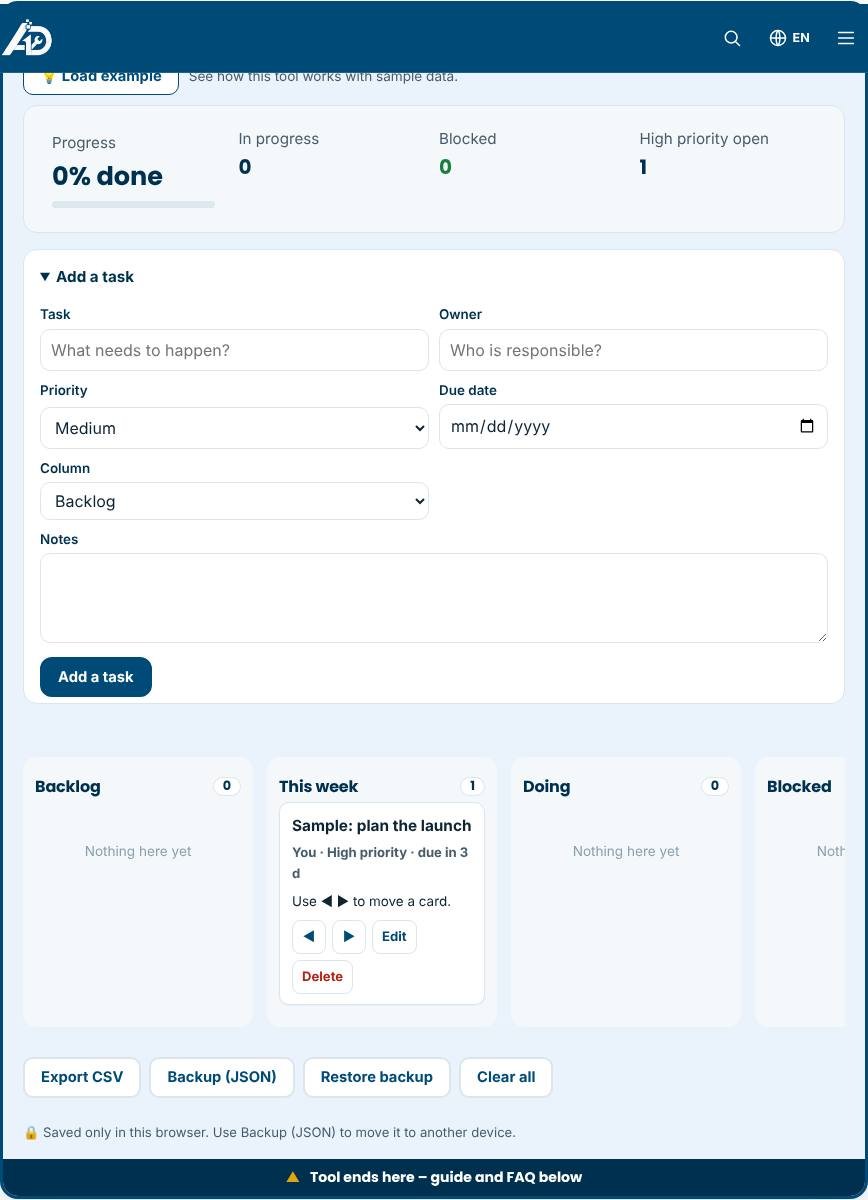
Project management software is often heavy, expensive or locked behind an account. This free online tool gives you a lightweight Kanban board with five columns: Backlog, This week, Doing, Blocked and Done. Each card has an owner, a priority, a due date and notes. The top panel shows your progress as a percentage, how many tasks are in progress, how many are blocked and how many high-priority tasks remain. It works on phones and desktops, and everything you add stays in your own browser.
Why Kanban works
Kanban comes from lean manufacturing and became popular in software and marketing teams because it makes work visible. Each card moves from left to right as it advances. Seeing everything in one place exposes bottlenecks, such as too many tasks stuck in "Blocked", and encourages finishing work before starting more. A small board with clear columns is enough for a launch plan, a website redesign, an event or a household project.
How to set it up in five minutes
- Add every task you can think of to the Backlog, one card each.
- Give each card an owner and a priority so it is clear who does what and what matters most.
- Choose the tasks for the next seven days and move them to "This week".
- Move one card at a time to "Doing". Limit yourself to two or three at once.
- When something is waiting on a person or a decision, move it to "Blocked" and write why in the notes.
Tips for better results
- Keep card titles short and action-based so the board stays readable on a phone.
- Use High priority sparingly. If everything is urgent, nothing is.
- Check the Blocked column daily and take action to clear it.
- Hold a short weekly review: move finished cards to Done, pick the next batch and update dates.
- Use notes for links, requirements or decisions that you would otherwise search for later.
Common mistakes to avoid
- Letting the Backlog become a graveyard. Remove ideas that you will never do.
- Skipping due dates. A task without a deadline rarely gets done.
- Assigning cards to "everyone". Every card needs one responsible owner.
- Forgetting that this tool is browser-based. If you switch devices, export a backup and restore it.
Privacy and limits
All data is saved in your browser and not sent to us. The board is designed for a single user or for planning that you share by exporting a CSV. It does not provide real-time team collaboration, notifications, time tracking or file storage. For freelance work with client names, estimates and rates, use the Freelance Project Management Tool. To follow marketing work, try the Campaign Management Tool.
Related tools
Keep your clients in the Free CRM, follow contracts in the Contract Management Tool and calculate staffing costs with the Payroll Cost Calculator.
Who is it for?
Small teams, students, volunteers and startups that need structure without a monthly bill.
Why use it
- Built for freelancers and small businesses
- Clear, printable results
- No account needed to try
- Your data stays on your device
Frequently asked questions
Which type of tool is best for a small team?
A simple board with owners and due dates is usually enough for teams under ten people. Add more features only when you need them.
What should I look for in a free plan?
Check user limits, storage, file attachments, export options and whether key features sit behind a paywall.
Can I move to another tool later?
Yes, if the tool can export CSV. Export your tasks regularly so you are never locked in.
Is the project management tool really free?
Yes. There is no account, trial or paid plan. It runs in your browser.
Can several people use the same board?
Not at the same time. Export a backup file and share it, or use the board for personal planning and send CSV updates to others.
How many tasks can I add?
Hundreds. Browser storage is limited, but plain text tasks take very little space.
Results are estimates for planning only and are not legal, tax or accounting advice. Check local rules before you rely on a figure.