Overlay Text Detector – Read Text from Any Image (OCR)
The Overlay Text Detector reads the words written on top of a picture, such as a screenshot, a meme, a product label or a photo with a caption, and turns them into text you can copy. It also lists the links, emails, phone numbers and codes it finds.
Loading tool…
How to use the Overlay Text Detector
-
1
Step 1
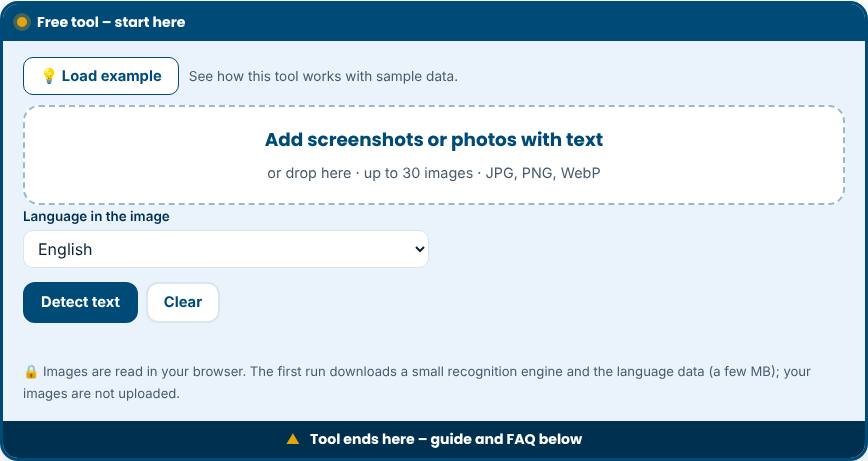
Add one or more images (screenshots, photos or pictures with text).
Overlay Text Detector – Step 1 -
2
Step 2
Choose the language of the text in the image, for example English or Urdu.
-
3
Step 3
Press “Detect text” and wait while the images are read one by one.
-
4
Step 4
Copy the text, download it as a .txt file, or copy the links, emails and codes found.
What is an overlay text detector?
An overlay text detector reads the words that appear on top of a picture and turns them into text you can copy, search and edit. The technology behind it is called OCR, short for optical character recognition. Think of a screenshot of a chat, a photo of a shop sign, a meme, a product label, a scanned page or a social media graphic with a caption. To your eyes the words are easy to read, but to a computer they are just coloured pixels. This tool analyses those pixels, recognises the letters and gives you the text. It works in your browser, supports many languages, including Urdu and Arabic, and also lists the links, emails, phone numbers and codes it finds so you do not have to pick them out by hand.
How to use it step by step
Add one image or several, up to thirty at a time, by choosing files or dropping them on the box. Select the language of the text in the picture. This matters, because the engine uses a different language model for English, Urdu, Arabic, Hindi and so on. If your image mixes English and Urdu, choose the English + Urdu option. Press Detect text. The first time, the tool downloads a small recognition engine and the language data, which can take a few seconds on a slow connection. After that each image is read in a moment. For every image you get an editable text box, a Copy button, a Download .txt button and a preview with coloured frames around the words that were found. Gold frames show words the engine is confident about. Red frames show words it is unsure about, so check those first.
Getting accurate results
Result quality depends mostly on image quality. Use these tips.
- Use a sharp image. Blurry photos and heavily compressed screenshots produce mistakes.
- Prefer dark text on a plain light background. Busy photo backgrounds and low contrast reduce accuracy.
- Choose the correct language. English text read with an Urdu model, or the other way round, gives nonsense.
- Check names, numbers, prices and codes manually before you use them. The characters 0 and O, 1 and l are easy to confuse.
Finding links, emails, phones and codes
After the text is detected, the tool scans it for useful items and shows them under the text box. Links starting with http or www are listed as links. Anything that looks like an email address appears under Emails. Sequences of digits that look like phone numbers are shown under Phones, and mixed letter and digit strings, such as order numbers, coupon codes and tracking codes, appear under Codes and numbers. This makes it quick to collect contact details from many images.
QR codes, link safety and AI-instruction check
Each image is also scanned for QR codes. Every link, from a QR code or written on the picture, is checked for scam signs such as link shorteners, look-alike brand names and risky endings. Wording that tries to instruct an AI model is flagged too. For a full 12-step review with an AI-image estimate, use the Typographic Attack & AI Image Detector.
Privacy and speed
Your images are read inside your browser. They are not sent to our server or to any other service. Only the recognition engine and the language data files are downloaded, and your browser keeps them for later visits. Because the engine loads only when you press the button, the page itself stays light and fast.
Related tools
Add text, numbers or codes to many pictures at once with the Text Overlay Generator, shrink images with the Image Compressor before reading them, or make new graphics with the Free Online Design Editor. Need a custom text-reading tool for your business? Visit the custom tool service page.
Who is it for?
Marketers, students, sellers and office workers who need to copy text from images, screenshots and scanned notes instead of typing it again.
Why use it
- Works in your browser – files are not uploaded
- No signup, no watermark
- Fast on phone, tablet and desktop
- Download in common formats (PNG, JPG, WebP)
Frequently asked questions
Which languages can it read?
English, Urdu, Arabic, Hindi, Bengali, French, Spanish, German, Italian, Portuguese, Russian, Turkish, Chinese, Japanese and Korean, and an English + Urdu mix.
Are my images uploaded?
No. The images are read inside your browser. Only the small recognition engine and the language data are downloaded the first time you use it.
Why are some words wrong?
Blurry, small or stylised text is harder to read. Use a sharper, larger image, choose the correct language and always check names and numbers.
Can it read Urdu text in images?
Yes. Choose Urdu or English + Urdu as the language. Clear, printed Urdu text works best. Nastaliq calligraphy and handwriting are harder and need checking.
Is there a limit on the number of images?
You can add up to thirty images at a time. Press Clear to start again with a new set.
Does it work offline?
The first use needs the internet to download the recognition engine. Your images themselves are never uploaded.
Can it read handwriting?
Only partly. The tool is designed for printed text, so handwriting usually needs many corrections.