
Image to WebP Converter – Make Your Website Images Smaller
WebP is a modern image format that is usually 25–35% smaller than JPG or PNG at the same quality, so your website loads faster. Add your images, choose a quality and download them as WebP – one by one or all together in a ZIP.
Loading tool…
How to use the Image to WebP Converter
-
1
Step 1
Add one or many images with the upload box (JPG, PNG, GIF, BMP or AVIF).
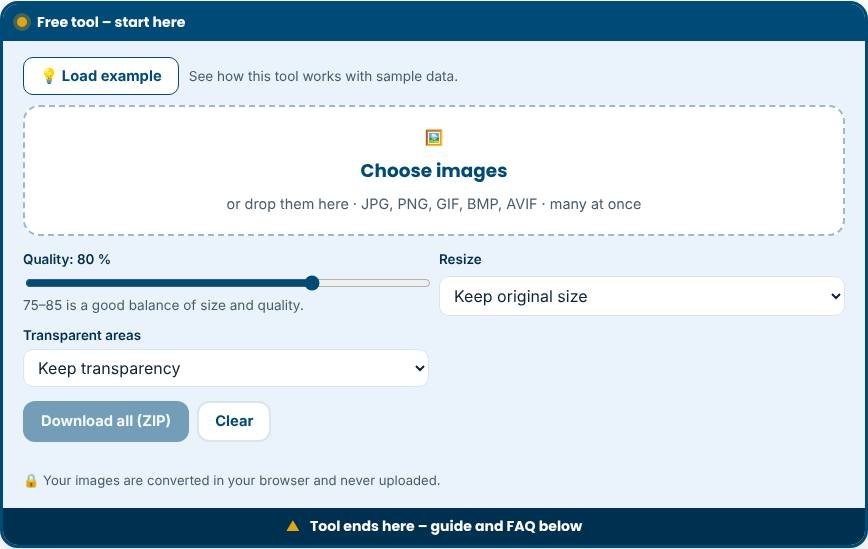
Image to WebP Converter – Step 1 -
2
Step 2
Choose the quality (80 is a good start) and, if you like, a maximum width.
-
3
Step 3
The tool converts the images instantly and shows the size before and after.
-
4
Step 4
Download each WebP file, or press “Download all (ZIP)” to get them together.
What is a WebP converter?
A WebP converter changes ordinary images, such as JPG, PNG, GIF or BMP files, into the WebP format. WebP was developed by Google for the web. It uses more efficient compression than older formats, so a WebP picture usually looks the same as the original but is 25 to 35 percent smaller. Smaller images mean pages that load faster, less data used by visitors on mobile networks and better scores in tools that measure page speed. This free converter works in your browser. You add your pictures, choose a quality, and download the WebP files one by one or all together in a ZIP file. Nothing is uploaded to a server.
Why WebP matters for websites
Images are usually the heaviest part of a web page. A blog post with six photographs can easily weigh several megabytes if the photos come straight from a phone or camera. Search engines and visitors both prefer fast pages. Google's Core Web Vitals, especially Largest Contentful Paint, are often held back by large hero images. Converting those images to WebP is one of the simplest ways to improve loading time without changing your design. Online shops benefit as well, because product galleries with many photos load more smoothly on phones.
How the converter works
When you add an image, the tool draws it on a canvas inside your browser and asks the browser to save the canvas as WebP at the quality you chose. You can also limit the width, for example to 1920 pixels for full-width banners or 800 pixels for blog images, which cuts the file size further. For images with transparent areas you can keep the transparency, which WebP supports, or fill it with white or black. The results list shows the size before and after each conversion so you can see the saving immediately.
Choosing the right quality
Quality 80 is a good default for photographs: the difference from the original is almost invisible, and files are small. Use 85 to 90 for portraits and product photos where fine detail matters. Use 60 to 70 for background images and thumbnails. Graphics with sharp edges, such as logos and screenshots, may look better at a higher quality. If a result looks soft, convert it again from the original with a higher setting. Always keep your original files, because converting an already compressed picture again loses more detail.
Tips for the best results
- Resize before you convert. A 4000 pixel photo shown at 800 pixels wastes bandwidth even as WebP.
- Use descriptive file names such as red-leather-wallet.webp instead of IMG_2045.webp.
- Write short, specific alt text that describes the picture for people using screen readers.
- Convert large images first, since they bring the biggest speed gains.
- Test your page speed before and after to see the difference.
- Keep a JPG or PNG copy for places that do not accept WebP, such as some email programs.
- To use the files in WordPress, open Media, choose Add New, upload the WebP files and add alt text.
Browser support and privacy
All current versions of Chrome, Edge, Firefox, Opera and Safari can display WebP, and almost all visitors use one of them. Creating WebP files needs a browser that supports it in the canvas, which includes current Chrome, Edge, Firefox and Safari. If your browser cannot create WebP the tool tells you. Your pictures never leave your device, so the tool is safe for client work and personal photos.
Related tools
Reduce a picture to a specific size with the Image Compressor, cut out a subject with the Background Remover and add text to your pictures with the Text Overlay Generator.
Who is it for?
Website owners, bloggers, WordPress and Shopify sellers, developers and anyone who wants faster pages and better Core Web Vitals.
Why use it
- Works in your browser – files are not uploaded
- No signup, no watermark
- Fast on phone, tablet and desktop
- Download in common formats (PNG, JPG, WebP)
Frequently asked questions
What is WebP and why should I use it?
WebP is an image format made by Google. It gives smaller files than JPG and PNG at similar quality, which makes pages load faster and can help your search performance.
Do all browsers support WebP?
Yes. Current versions of Chrome, Edge, Firefox, Safari and Opera display WebP images.
Are my images uploaded?
No. The conversion happens in your browser, so your files stay on your device.
Is WebP better than JPG?
For most websites, yes. WebP gives smaller files at similar quality and supports transparency, which JPG does not.
Can I convert many images at once?
Yes. Add as many as you like, then download them one by one or all together as a ZIP.
Will converting reduce my image quality?
Slightly, depending on the quality you choose. At 80 percent the difference is hard to see, and you keep your originals.