
Freelance Project Management Tool – Plan Projects and Deadlines
A freelance project management tool keeps client projects, tasks and deadlines in one place. Use a simple To do – Doing – Done board to see what to work on next and what is late.
Loading tool…
How to use the Freelance Project Management Tool
-
1
Step 1
Create a project and name the client.
Freelance Project Management Tool – Step 1 -
2
Step 2
Add tasks with a due date and estimated hours.
-
3
Step 3
Move tasks across the board as work progresses.
-
4
Step 4
Review the weekly view each Monday to plan your time.
A simple project board for freelancers
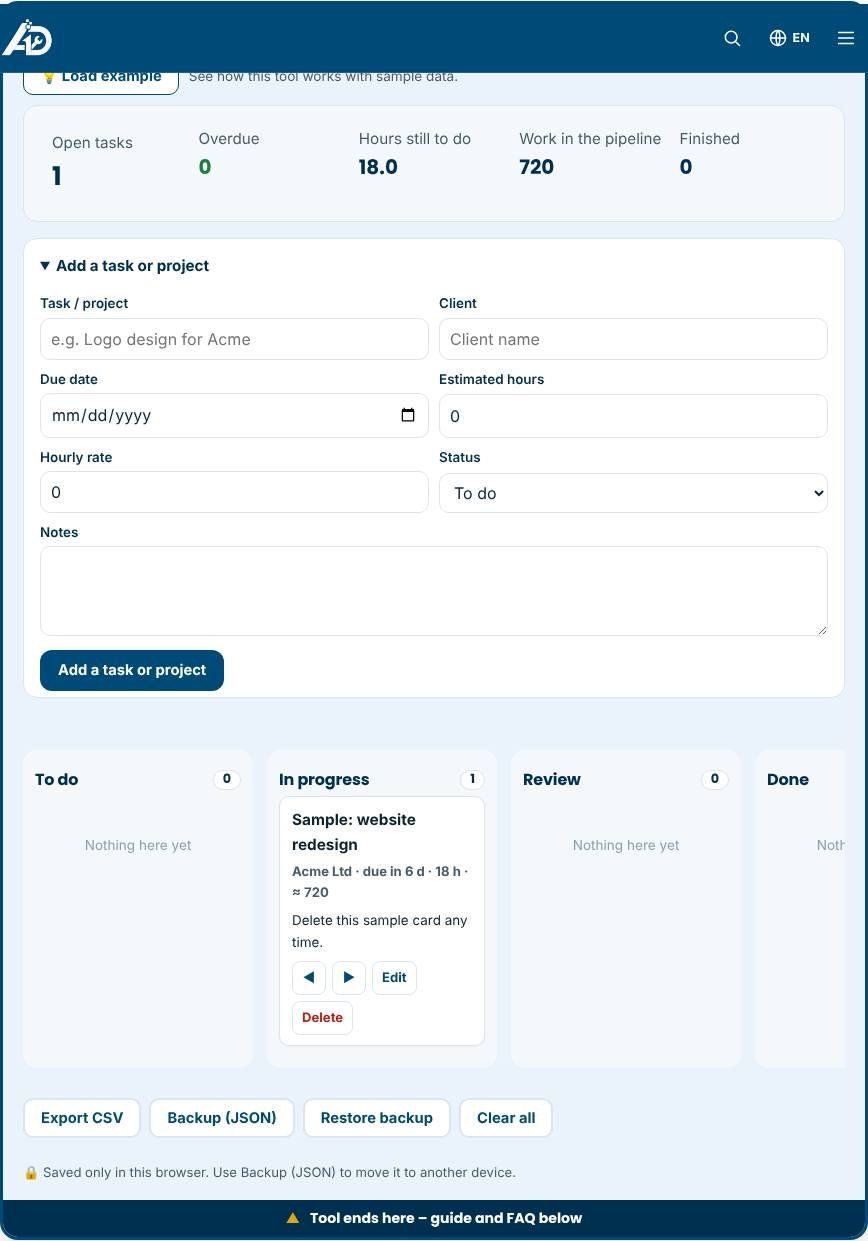
Freelance work gets messy when tasks live in emails, chat threads and scraps of paper. This project management tool gives you a clear board with four columns: To do, In progress, Review and Done. Add a task or a whole project, note the client, due date, estimated hours and hourly rate, and move cards forward as work progresses. The summary at the top shows what is open, what is overdue, how many hours remain and the value of work in the pipeline. It is free, needs no account and works on phones.
How the board helps you work
A visual board makes workload obvious. You see at a glance what is waiting, what you are doing now and what needs your client's approval. Limiting the "In progress" column to two or three cards keeps you focused and prevents half-finished work from piling up. Cards with a due date turn highlighted when they are overdue, so deadlines do not slip by silently. Estimated hours multiplied by your rate give you the expected value of each task, which helps you decide what to start first.
Ways to use it
- Track one card per client project and move it through the stages from brief to delivery.
- Break big projects into small tasks, such as "wireframes", "first draft" and "revisions".
- Plan your week by moving the most important cards to the top of "To do" on Monday.
- Mark tasks as "Review" when you are waiting on feedback so you do not forget to follow up.
- Export a CSV to share status with a client or to import into a spreadsheet.
Tips for staying organised
- Write cards as actions starting with a verb, such as "Send logo concepts". It makes the next step obvious.
- Add realistic hour estimates. Over time you will learn how long your usual tasks take and quote better.
- Review the board at the end of each day and again at the start of the next.
- Archive finished work by exporting it, then clear completed cards to keep the board light.
- Back up regularly with the JSON backup, because data is stored in your browser.
Common mistakes to avoid
- Creating too many columns or cards. A simple board you actually use beats a complicated one you ignore.
- Leaving tasks without a due date. Without a date, work drifts.
- Forgetting to update the board. Move a card the moment its status changes.
- Treating your browser as permanent storage. Clearing site data removes the board unless you have a backup.
Privacy and limits
Your tasks stay in this browser through local storage. We never see client names or project details. The tool is for one person; it has no team accounts, comments or file attachments. If you need to collaborate with a team, export your tasks or use the Free Online Project Management Tools board, which adds owners and priorities.
Related tools
Send the bill with the Invoice Generator for Freelancers, set fair prices with the Rate Calculator and log hours in the Timesheet Calculator.
Who is it for?
Solo freelancers and tiny teams who find big project software too heavy.
Why use it
- Built for freelancers and small businesses
- Clear, printable results
- No account needed to try
- Your data stays on your device
Frequently asked questions
Is this enough for client work?
For solo work and small projects, yes. Larger teams may want shared accounts and permissions.
Where is my data kept?
In your browser on your device, so clearing site data will remove it. Export a copy regularly.
How should I estimate task time?
Break work into pieces under one day, estimate each, then add a 20–30% buffer for revisions.
Where is my data stored?
In your browser on this device. Use Backup (JSON) to save a copy, and Restore backup to load it on another device.
Can I invite my client to the board?
Not directly. Export a CSV or take a screenshot to share progress. The board is designed for solo work.
Does the board remember what I delete?
No. Deleted cards are removed from the board. Back up first if you might need them again.
Results are estimates for planning only and are not legal, tax or accounting advice. Check local rules before you rely on a figure.