
Free Ebook Generator and Creator – Format a Kindle-Ready EPUB
An ebook generator helps you plan and structure a book: topic, outline, chapters, introduction and cover ideas. Use the draft as a framework, add your own expertise and examples, then export for sale.
Loading tool…
How to use the Free Ebook Generator & Creator
-
1
Step 1
Fill in the book details (title, author, description, language) and your topic.
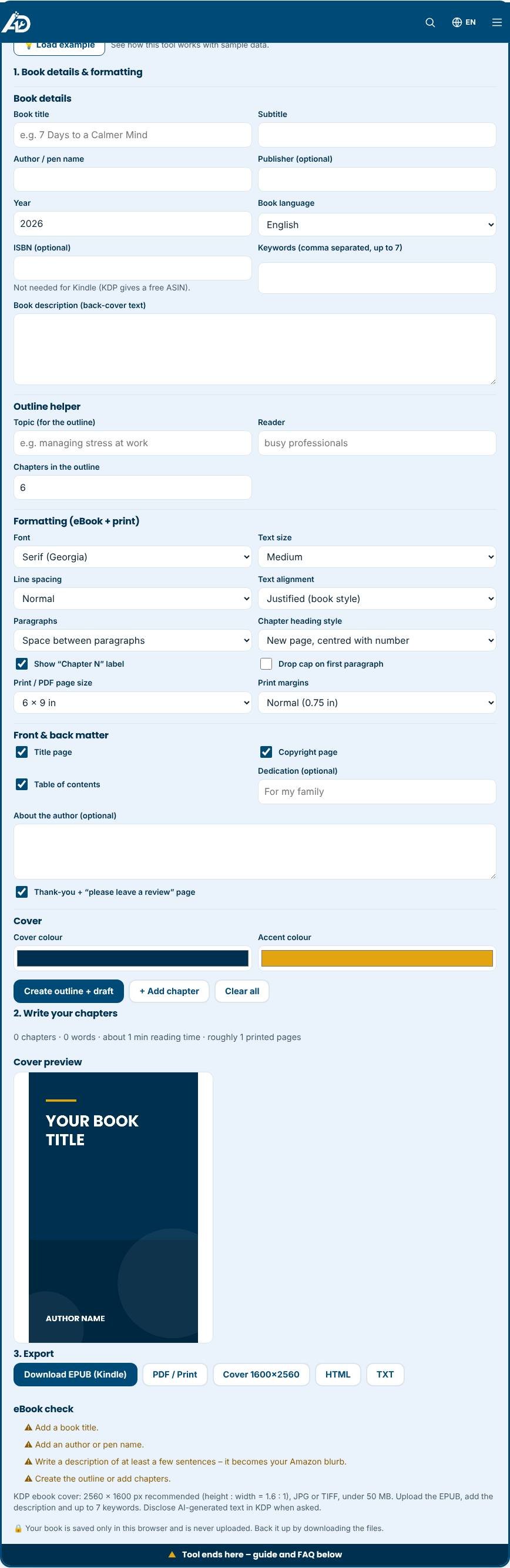
Free Ebook Generator & Creator – Step 1 -
2
Step 2
Create the outline and draft, then write each chapter in your own words.
-
3
Step 3
Choose fonts, chapter style, front matter (copyright, contents, dedication) and back matter.
-
4
Step 4
Check the eBook panel, then download the EPUB, the 1600×2560 cover or a print PDF.
What is an ebook generator?
Writing a book is a big project, but much of the work is structure and formatting: planning chapters, keeping track of the text, designing a cover and exporting the right file. This free ebook creator handles that part. You enter the title, author, topic and reader, and the tool builds an outline with an introduction, numbered chapters and a conclusion, each with writing prompts. You write the content in simple text boxes, see the word count update, design a cover, and export the finished book as an EPUB, a printable PDF, HTML or plain text.
How it works
Press "Create outline" to generate a chapter structure based on your topic. Each chapter starts with a draft of Key idea, Explanation, Example and Try it. Replace the draft with your own words. You can rename, reorder, add and delete chapters. Use "# Heading" for sub-headings, "- " for bullets and a blank line between paragraphs. The cover designer uses your title, subtitle, author and two colours. When you are ready, export an EPUB file, which works with Kindle Direct Publishing, Apple Books, Kobo and most e-reader apps.
Professional formatting, step by step
Good formatting is what makes an ebook look published. The tool lets you set the font, text size, line spacing, justified or left text, and either spaced paragraphs or novel-style indents. Choose how chapter headings look (centred with a number, left aligned or with a simple line), switch on a drop cap, and pick the print page size and margins for the PDF. The front matter is created for you: title page, copyright page with your name, year, publisher and ISBN, an optional dedication and a clickable table of contents. At the back you can add an about-the-author page and a thank-you page that asks readers for a review.
Details Amazon needs
Fill in the description, up to seven keywords, the language and the publisher. They are saved inside the EPUB as metadata. The ebook check panel warns you about a missing description, a very short book, or chapters that still contain the draft instructions. Export the cover separately at 1600 by 2560 pixels, the shape recommended for Kindle covers.
Tips for finishing your book
- Write a little every day. Set a modest target, such as 500 words.
- Use your own stories, data and examples. They make the book valuable and unique.
- Read the text aloud to catch awkward sentences.
- Ask two or three readers for honest feedback before publishing.
Publishing options
You can sell the EPUB through Amazon KDP, Apple Books, Kobo, Google Play Books or directly from your website. Each store has its own rules for metadata, covers, pricing and content. Use the KDP Listing Assistant to prepare your title, keywords and description. If you plan to give the book away as a lead magnet, export the PDF and offer it for a newsletter signup.
Common mistakes to avoid
- Using text, images or quotes that you do not have the rights to.
- Skipping proofreading and formatting checks.
- Relying on generated text without checking facts and adding your expertise. If you use AI tools to write, follow each store's disclosure rules.
- Forgetting to back up. Your draft is stored in your browser, so export copies often.
Privacy and limits
Your book is saved only in this browser, and nothing is uploaded. The tool structures and formats your work; it does not write the book for you. Complex layouts with tables or images inside chapters need a dedicated book editor. Always preview the EPUB before publishing.
Related tools
Prepare your listing with the KDP Listing Assistant, build interior pages for journals with the Low Content Book Generator and check your tone with the AI Content Detector.
Who is it for?
Coaches, creators and small businesses who want to publish a guide or lead magnet.
Why use it
- Title, subtitle and seven-keyword helper
- Interior layouts for journals, planners and logbooks
- Ebook outlines and chapter plans
- Free to start
Frequently asked questions
How long should an ebook be?
Lead magnets are often 10–20 pages. Paid guides usually run 30–100 pages depending on topic.
Can I sell an ebook I generated?
You can sell your own work, but add real expertise and check platform rules on AI content and copyright.
Which format should I choose?
PDF works everywhere and keeps layout. EPUB suits e‑readers.
Can I upload the EPUB to Amazon KDP?
Yes. KDP accepts EPUB files. Preview the book in the KDP previewer and check the formatting before you publish.
Does the tool write the chapters for me?
It builds the outline and prompts. The text is yours, which makes the book original and accurate.
Where is my book saved?
In your browser on this device. Export an EPUB or text copy regularly to keep a backup.
Always follow Amazon KDP’s content guidelines, copyright rules and AI-generated content disclosure requirements.